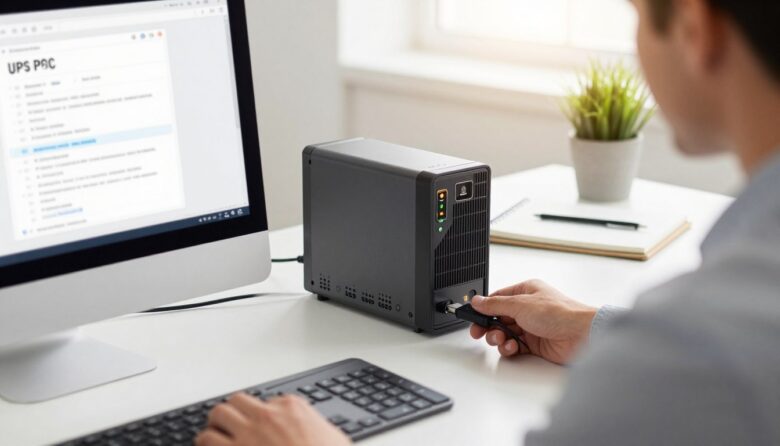
I manage APC Smart UPS 2200 and APC Smart UPS 2200XL units in my environment. I run a Windows Server 2012 R2 host that powers several virtual machines, so reliable power and quick response matter to me.
PowerChute for business is the choice I use to monitor APC gear. I found that the right software and careful planning make installation and ongoing management much easier.
I check the connection port and confirm the device link before finalizing any setup. Doing this helps me track backup time, view shutdown triggers, and avoid data loss during outages.
Key Takeaways
- I use PowerChute to monitor APC Smart UPS models on Windows Server 2012 R2.
- Verify port and connection before completing the installation process.
- Good management tools show backup time and shutdown conditions clearly.
- Plan the configuration to protect virtual machines from power loss.
- Regularly review settings and device screens for timely information.
Understanding Your UPS Hardware Requirements
I begin by checking which dedicated connectors and power ratings each model requires. For models like the OMRON S8BA-24D24D120LF and the BU-2RWL series, some parts need specific hardware interfaces to operate correctly.
High-capacity units such as the BU5002RWL demand careful power planning. I verify that my power supply infrastructure can handle peak loads and sustained draw during outages.
Before I install anything, I confirm whether a model needs a dedicated cable or interface. Doing this prevents connector mismatches and unexpected failures during critical server maintenance.
- I check rated capacity to ensure the unit can support connected equipment during a full utility outage.
- I validate supply compatibility to avoid voltage or connector issues.
- Proper hardware assessment keeps the system reliable and reduces downtime risks.
Tip: Document cable types, rated amps, and connector details for each unit. This simple record saves time and keeps my environment resilient under power stress.
Essential Steps for UPS PC Software Setup
My first step is to verify that the management utility runs on the target Windows host. The UPS Setting Utility supports Windows 10, Windows 8.1, and Windows Server 2012 R2, so I confirm compatibility before any installation.
Software Compatibility and Installation
I install the utility on a dedicated computer running Windows to avoid conflicts with other applications. Installing on a compatible system ensures the tool can read device data and manage power events reliably.
I keep the installation short and focused. I provide accurate information during the process so the utility can monitor backup time and trigger graceful shutdowns when needed.
Establishing Initial Communication
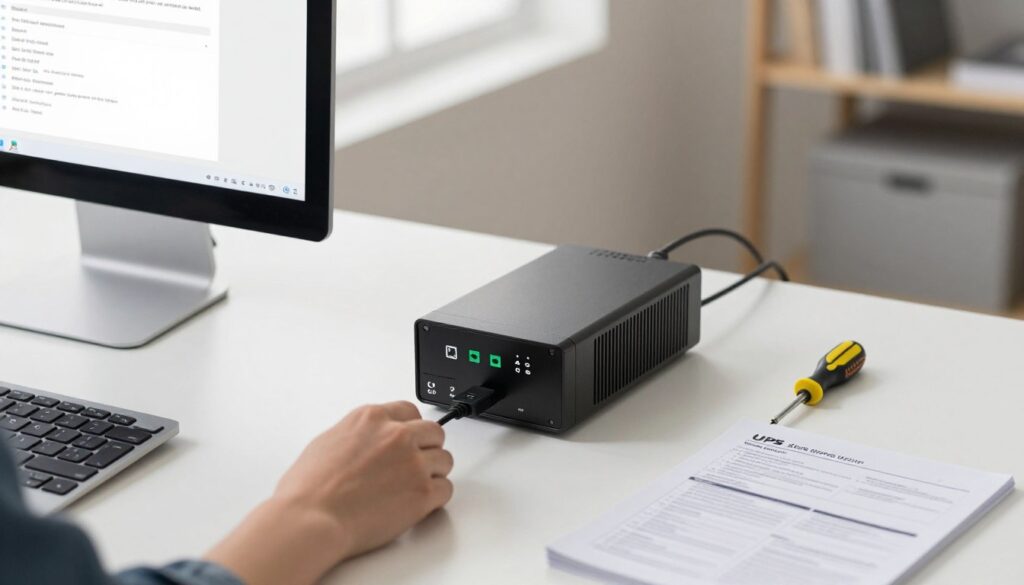
I establish a stable connection using either an RS232C cable or a USB link, depending on the device. Verifying the correct dedicated cable prevents connection errors and lost information.
Once connected, I check the unit screen and the application for a successful communication status. If contact fails, I contact technical support to confirm application and device compatibility.
- I always install the management utility on Windows to ensure smooth operation.
- Use USB or RS232C for the first connection and verify the screen shows communication.
- Configure backup and shutdown settings so servers and devices close safely during outages.
Configuring Network Management and Communication
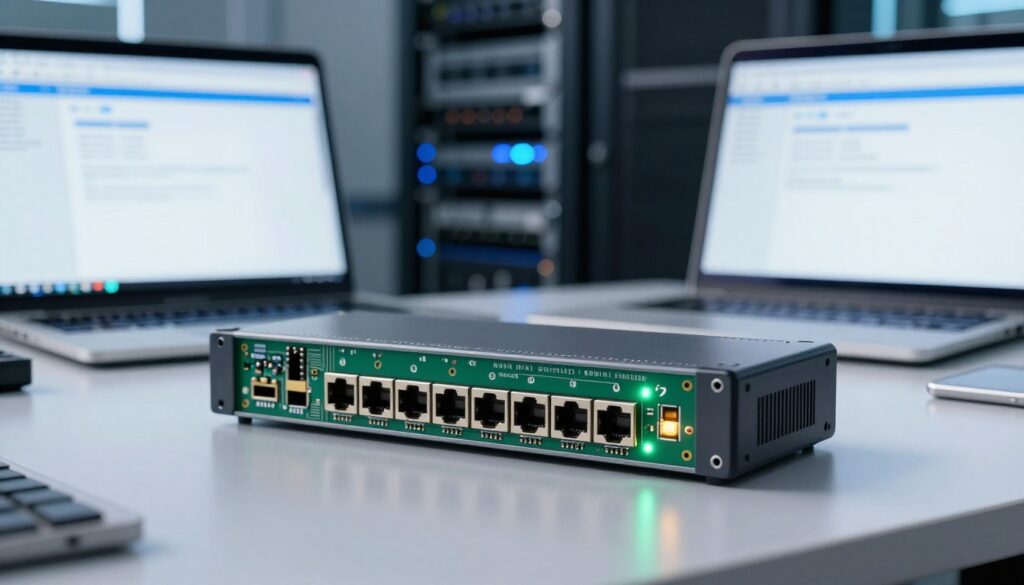
A properly configured management card turns a local device into a network-visible asset I can check from anywhere. I start by confirming the card firmware is at version 3.1.0.0. This prevents the card from becoming stuck and ensures hardware compatibility.
Utilizing Network Management Cards
Network Management Cards enable SNMP and HTTP access over an Ethernet port. That means I can pull real-time information to my central screen or a web browser without serial cables.
“Updating the NMC firmware and mapping shutdown rules saved me hours during maintenance windows.”
I map shutdown commands so servers close cleanly when mains fail. Proper installation of the card and its software lets the device report supply and load status to the management station. This configuration shortens response time and makes system management easier for any user.
| Feature | Recommendation | Reason |
|---|---|---|
| Firmware | 3.1.0.0 | Prevents card lockups and adds network features |
| Connection | Ethernet port | Real-time SNMP/HTTP access |
| Shutdown | Mapped to server policies | Ensures graceful shutdowns |
Optimizing Power Management and Shutdown Settings
I define how long the unit should keep feeding equipment before it stops output. This lets me balance useful backup time with safe shutdown behavior.
Setting Maximum Backup Time
I set the Max backup Time to a specific number of minutes so the device will stop output after that period. Using SPSService and SPSInterface helps me log events and notify users before a forced shutdown.
Testing this value in a controlled outage verifies that applications close and that the power supply is protected.
Managing Auto Reboot Modes
I enable auto reboot options so devices recover once mains return. That reduces manual intervention and speeds up normal operation.
Tip: Choose reboot delays that let systems finish startup checks and avoid repeated cycles.
Configuring Dry Contact Signals
I wire dry contacts to trigger external alarms and to send a clear notification when battery levels become critical. This reliable signal gives me immediate information even if network paths fail.
After any change, I save the shutdown content to nonvolatile memory and run a test to confirm the system behaves as expected.
“Verifying settings and testing shutdowns saved me from unexpected data loss during a city power interruption.”
- I use SPS to protect the computer and power supply during loss events.
- Set max backup minutes and test to ensure graceful shutdowns.
- Map dry contact signals for dependable alerts and fast response.
Troubleshooting Common Connection Issues
I begin troubleshooting by checking if another process is locking the communication port. If the message says “The connected ups did not exist,” a competing app often holds the port.
I also confirm the USB or serial cable is firmly seated on the computer and the device. Loose cables cause intermittent connection and lost information.
Next, I inspect the power supply link. If the unit is not reporting data, a power fault can stop updates to the system and the screen.
- I check system logs to see if a shutdown was triggered by a loss event.
- I wait a few minutes after restarting Windows to let the software re-establish the connection.
- I verify that the settings match the connected unit model to avoid mismatches during installation and operation.
“Confirming port use and cable integrity fixed most of my connection errors.”
Final Thoughts on UPS System Reliability
Consistent monitoring is the single best habit I use to prevent unexpected downtime. I check my settings and review the power supply and backup time on a regular schedule.
I follow clear installation and configuration steps so every device and management tool reports accurate information. Keeping firmware and software updated gives me the latest fixes and vendor support.
Regular tests of shutdown rules and screens confirm that the system will behave when power fails. This routine protects both home and business devices and saves me time during real outages.
In short, proactive checks, simple maintenance, and timely updates deliver reliable protection and peace of mind.
FAQ
What do I need in hardware before I install the power management program?
I recommend confirming the unit has a compatible communication port (USB, serial, or network management card) and that your server or computer has the matching interface. Check battery health, firmware version, and available outlets to ensure the power supply can support connected devices during a brownout or outage.
How do I verify compatibility between my operating system and the utility?
I check the vendor’s documentation for supported Windows versions and any required drivers. If you run virtualization or non-Windows servers, verify agent support for Linux or VMware. Also confirm the communication protocol and any required .NET or Java runtimes are present.
What’s the first step to establish initial communication with the unit?
I connect the cable (USB or serial) or install a network card, then open the management client and select the appropriate port. For network connections, I assign a static IP or use DHCP and ping the unit to confirm reachability before attempting authentication.
How do I use a network management card to monitor multiple units remotely?
I install the card into the host slot, configure IP settings via the device’s local console, and enable SNMP or HTTPS. Then I add the unit to my monitoring console and set up alerts and credentials so I can receive notifications and perform remote shutdowns if needed.
How can I set the maximum backup time to protect critical services?
I calculate the load in watts for essential servers and configure the runtime target in the utility. Then I test under a controlled power loss to verify the unit sustains the load for the chosen minutes and adjust shutdown thresholds to prevent data loss.
What’s the best way to manage automatic reboot modes after a power return?
I set a staged restart plan: delay nonessential devices, bring critical systems online first, and enable automatic reboot only for validated hardware. That prevents inrush current issues and helps services come up in the right order to avoid failures.
How do I configure dry contact signals for building management integration?
I map alarm states to the dry contact terminals, verify the relay logic (normally open/closed), and test each condition with the building management system. Proper labeling and a wiring diagram help facilities staff maintain the connection safely.
What should I do if the client cannot detect the device over USB or serial?
I check cable integrity and port assignment, confirm drivers are installed, restart the service, and swap ports if necessary. If the unit still isn’t found, I look at firmware mismatches and try a direct local console session to rule out network issues.
How do I secure remote management and prevent unauthorized shutdowns?
I enable strong passwords, use role-based accounts, and enforce HTTPS and SNMPv3 where supported. I also limit management access by IP and keep firmware and utility versions up to date to close known vulnerabilities.
Can I monitor battery health and get notifications before a failure?
I set thresholds for battery capacity and charge cycles so the system sends alerts when capacity falls below safe margins. Regular run-time tests and reviewing logs on a scheduled basis help me catch degradation early and plan replacements.
How do I integrate the power system with server shutdown scripts and applications?
I install the client agent on each server and configure graceful shutdown scripts that trigger based on runtime or critical alarms. Testing ensures applications stop in the right order and data consistency is maintained during an emergency power-off.
What troubleshooting steps help with network discovery failures?
I verify IP configuration, confirm network VLANs and firewall rules allow management traffic, and test connectivity with ping and port checks. I also ensure SNMP or HTTPS ports aren’t blocked and that credentials are correct.
How do I handle firmware or software updates without risking uptime?
I schedule updates during maintenance windows, back up current configurations, and apply updates to one unit at a time. After each update I run a quick validation to confirm monitoring, shutdown, and communication functions remain intact.
What are common causes of incorrect run-time estimates and how do I fix them?
I find inaccurate load measurements, old battery capacity data, or improper calibration cause errors. I remeasure actual load, update battery capacity in the management tool, and run a runtime calibration test to correct estimates.
How can I ensure the system provides alerts to multiple recipients and platforms?
I configure email, SMS, and SNMP trap destinations in the management interface and integrate with my monitoring platform or incident management tool. Redundant notification paths reduce the chance an event goes unnoticed.